





From Set To Studio: Making The Most Of Your Apple Watch
Your Apple Watch works best when it stops acting like a tiny phone and starts acting like a wrist-mounted control panel. On a film set or in a studio session, small frictions stack up—digging for your phone, missing a cue, losing a note, or letting distractions leak into a take.
watchOS 26 pushes the watch further into “micro actions” that keep you moving, including a wrist flick to clear interruptions and a full Notes app on your wrist. Set it up with intention, and you’ll save time, protect your focus, and keep your creative brain free for decisions that matter.
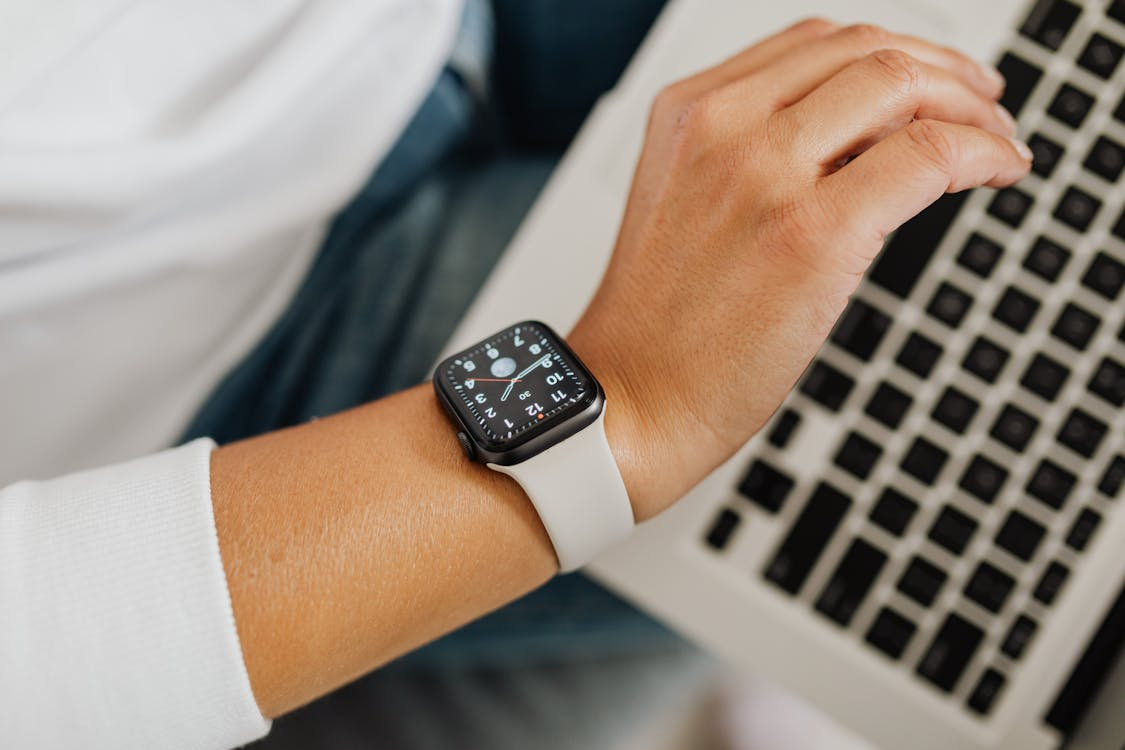
Photo by www.kaboompics.com on Pexels
Capture Ideas Fast So They Survive The Moment
Creative work produces tiny, fragile thoughts that disappear if you don’t capture them immediately. Your Apple Watch is perfect for quick capture because it’s already on you, and watchOS 26 makes capture more useful with Notes on the wrist. Decide what belongs on the watch and what belongs on your phone later.
Use Notes For Shot Lists, Session Cues, And Fix Lists
Keep one pinned note for today’s must-do items and one for fix-later issues, then add short lines as things happen. Shot list tweaks, continuity risks, noisy cables, or a better mic position all belong here. You can clean it up on your phone without losing the original signal.
Dictate Clean Markers With Siri Instead Of Typing
Dictation turns your watch into a fast labeling tool. Say notes like you’re naming files: “Take 3 best energy,” “Verse needs tighter kick,” “Lighting flicker on wide.” Short, specific phrases stay searchable, and you can capture them without stepping away from the room.
Pin The Essentials For One-Tap Recall
Pinned items are where the watch becomes genuinely useful for creators. Pin your Wi‑Fi password, stage plot, patch list, camera settings reference, or a safety checklist so you stop asking the same questions twice. Keep it to three to five pinned items so you never scroll under pressure.
Set-Ready Time Management That Doesn’t Break Your Flow
A set runs on timing, but constant phone checks make you look distracted and feel scattered. Your Apple Watch gives you quick, silent cues so you can stay present while still staying on schedule. The goal is fewer screen moments and more reliable prompts for your Apple Watch on-set workflow.
Turn Calendar And Reminders Into A Call Sheet Companion
Use Calendar as your “wrist call sheet” by blocking the day into clear chunks: call, setup, rolling windows, meal, company move, wrap. Add only the events you truly need to see, and keep titles short so they’re readable at a glance. Use Reminders for hard dependencies like battery swaps and media offload, then tap them done the second they’re handled.
Run Haptic Timers For Takes, Breaks, And Turnarounds
Timers beat alarms on set because haptics stay private and don’t hit the mic, and you’ll feel them more reliably with apple watch series 5 bands that fit securely without cutting off circulation. Save a few standard timers (2, 5, 10, 20 minutes), so you’re not entering numbers while people wait.
Communicate With Less Clutter And More Intent
Your watch is not a group chat device—it’s an escalation device. Build fast replies that match production reality—“Rolling,” “Cut,” “Copy,” “Two Minutes,” “Moving,” “On My Way.” Use Focus to allow only key contacts and calls that can actually stop the day.
Control The Room Without Touching Everything
On set and in the studio, you’re constantly starting, stopping, and adjusting tech—often while your hands are busy. Your Apple Watch can act like a remote for tools you already use, cutting down on back-and-forth. This is where the watch saves the most time because it removes tiny delays.
Trigger Camera Without Shaking The Shot
If you shoot BTS, reference shots, or quick inserts on an iPhone, the watch can trigger capture while the phone stays stable on a tripod or gimbal. That means fewer accidental bumps and fewer “hold on” moments. It’s also an easy way to grab continuity photos without pulling attention from the main setup.
Manage Playback And Reference Audio From Your Wrist
In the studio, transport control is the killer use case: play, pause, skip, and quick volume changes while you’re near the mic or instrument. Use it to start a reference track in the booth or stop instantly when you hear a problem you need to fix. The goal isn’t mixing on a watch—it’s staying in position while you control the moment.
Control Lights And Comfort Without Breaking The Vibe
If you use smart plugs or lights, wrist control keeps sessions flowing. Dim lights for recording, brighten for teardown, or kill a noisy fan between takes without getting up. Save two or three room presets (Recording, Mixing, Break) so the room changes can be made with a single tap.
Protect Your Energy, Focus, And Safety On Long Days
Long days don’t fail because you lack talent—they fail because your attention and recovery run out. Your Apple Watch can be a guardrail that nudges you before you crash, not a guilt machine. Use health features as decision support, then move on.
Use Noise Alerts To Protect Your Hearing
Hearing fatigue is sneaky, even near speakers, generators, or crowds. Let noise alerts be an early warning, then step back or wear protection before you pay for it later. If you’re calling cues all day, plan quiet breaks so your voice survives wrap.
Block Distractions With Focus And Smart Stack Discipline
A buzzing watch is worse than no watch. Turn on a Work Focus that allows only essential contacts, timers, and production apps, then silence everything else. Keep Smart Stack widgets limited to tools that reduce stress: schedule, timers, tasks, battery, and maybe weather.
Use Recovery Signals To Schedule Smarter
Sleep trends are useful only if they change your plan. If you’re running low, push hard decisions earlier, lighten the late-night grind, or schedule a longer break instead of forcing it. This helps you avoid the “second wind trap” where adrenaline feels productive but costs you tomorrow.
Build A Reliable Setup That Won’t Die Mid-Session
Your Apple Watch should last through a shoot day, survive messy environments, and still be ready for a late studio session. WatchOS 26 adds new interactions and visuals, so it’s worth setting boundaries for battery and notifications. Configure for endurance first, then add back the features that truly earn their power.
Stretch Battery Life Without Killing Utility
Start with the big drains: always-on display, constant background refresh, and unnecessary cellular use. Use Low Power Mode when you only need time, timers, and basic cues, then turn it off when you need richer features. If Wi‑Fi is stable, switching off cellular (or 5G on supported models) can buy you more hours.
Build A Work Face That Answers Three Questions
Your work face should answer instantly: What time is it, what’s next, and what do I need to do right now? Use complications like Calendar, Timers, Reminders, battery, and one communication shortcut—then stop. Bigger text and high-contrast options help in bright sun and dim studios, where quick readability matters.
Keep Your Data Private On Shared Sets
Studios and sets are social spaces, and your wrist is easy to glance at. Use a strong passcode and wrist detection, and hide sensitive notification previews if people work close to you. Privacy is professionalism.
Conclusion
Your Apple Watch becomes a serious creator tool when you treat it like a system, not a gadget. The most valuable watchOS 26 upgrades aren’t flashy—they’re the low-friction moves that keep you focused, like wrist flick to clear interruptions and Notes on your wrist for instant capture.
You let the watch interrupt you only for timing, safety, and truly urgent communication. When you keep everything else off your wrist, you stay calmer, move faster, and make better decisions under pressure. That’s the real win from set to studio—less noise, more control, and more energy left for the take that matters.
